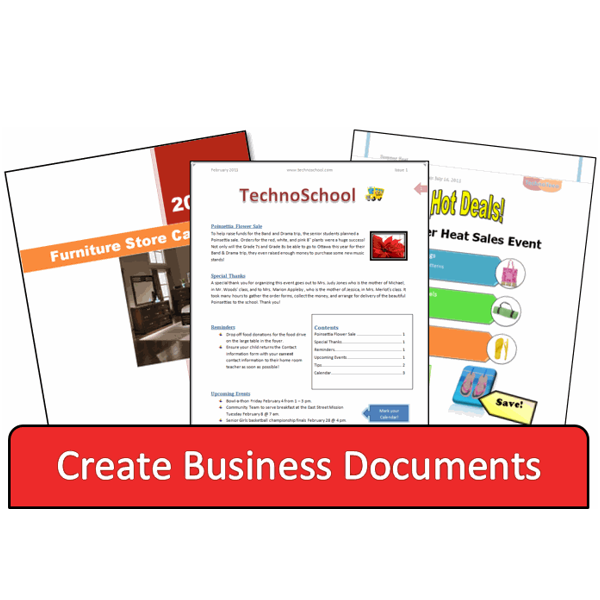
The TechnoAdvertise course has 20 assignments divided into six sessions.
Session 1: Job Search
Students apply for a job at TechnoAd Agency. To prepare for this task, students review cover letters and résumés and then answer questions to determine their qualifications. Once they have a list of their characteristics, skills, and experiences that make them a perfect match for the position, they open Microsoft Word to gain familiarity with the program. Next, they follow detailed instructions to write a professional cover letter and résumé. Upon completion, students address an envelope to send their application using traditional mail. They combine their cover letter and résumé and save the file as a PDF document to send digitally using email. These well-formatted business documents are sure to draw the attention of TechnoAd Agency!
Session 2: Create a Flyer
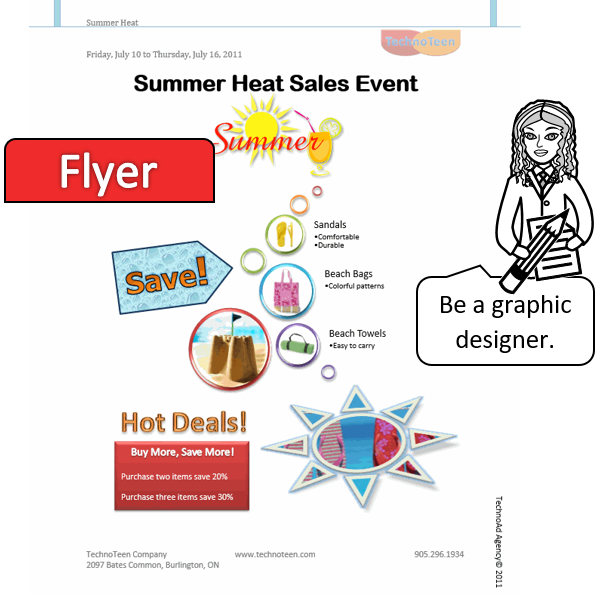
Students begin work for TechnoAd Agency. Their first task is to design a flyer for TechnoTeen Company. TechnoTeen Company sells shoes, clothing, and accessories to teenagers. They have requested a flyer to promote their Summer Heat sales event. To prepare for this task, students answer questions to learn about the objects on the Insert tab that can be added into a document. Once familiar with the range of options, they follow detailed instructions to produce an eye-catching ad using pictures, shapes, and more! The flyer is sure to draw attention with a SmartArt Graphic highlighting sales items, colorful header and footer that list store details, text box with discounts, and a catchy phrase written using WordArt. This advertisement is sure to sizzle!
Session 3: Design a Catalog – Phase 1
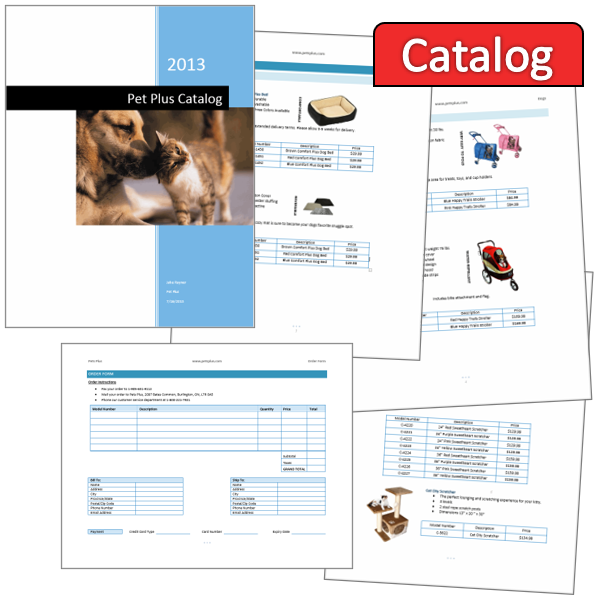
Students are responsible for creating a catalog, which contains an itemized list of products for sale. To complete this publication, the task is divided into two phases. In Phase 1, students create the catalog content. In Phase 2, they add page references to make the information easy for customers to find quickly. Phase 1 begins with students exploring the commands on the Layout tab. Next, they select the products to include in the catalog using an organizer. With a plan in place, students start construction of the catalog. They use their skills to divide a document into sections. Using layout commands, they add unique headers and footers to each section, produce a cover page, apply a watermark to the table of contents, and arrange a company message on a page with custom margins, columns, and a fancy border. Students then learn how to insert and format a table to produce an order form and product pages.
Session 4: Design a Catalog - Phase 2
Students complete their catalog by inserting page references. To prepare for this task, students explore the function of commands on the References tab. They follow a set of instructions to edit a document so that it includes a table of contents, footnotes, endnotes, citation, bibliography, caption, and an index. Afterwards, students apply their skills to add references to their catalog to permit customers to find information fast. Upon completion, they use a checklist to verify that their document is ready for publication. Customers are going to appreciate how easy it is to find the items they would like to order.
Session 5: Send a Custom Form Letter
Students invite customers to an exclusive shopping event using mail merge. Mail merge places unique information into a document that has placeholders. Using the Mail Merge Wizard, students add customer records, write a form letter, and merge data into placeholders on the letter to produce a personalized invitation. Afterwards, they generate mailing labels for each letter using commands on the Mailings tab.
Session 6: Produce a Newsletter
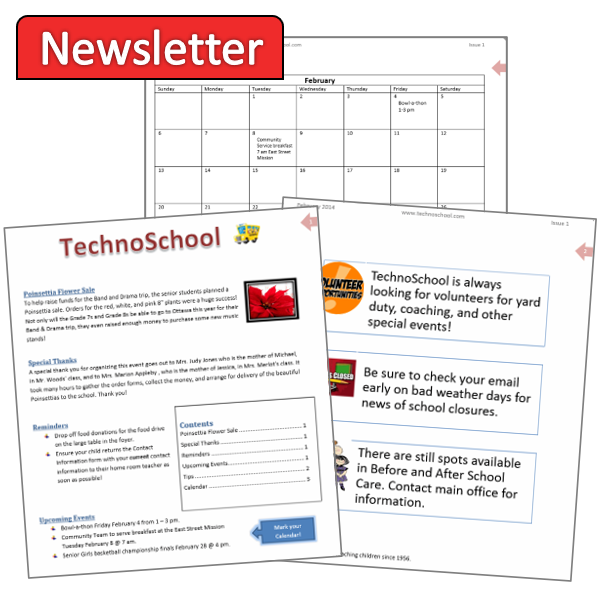
Students produce a newsletter for an organization to inform members about activities. The publication will include a brief article about a recent event, special appreciation section, upcoming events, reminders, tips, and a calendar. The goal is to have students apply their word processing skills to create the publication. For example, they will use their knowledge of Microsoft Word to format text, modify styles, insert objects, adjust page layout, and create a table of contents. Upon completion students use commands on the Review and View tabs to improve the content, design, and layout. Members are going to be well informed after reading this newsletter!
Optional Advanced Word Processing Lessons for High School
- The Interview: Take part in a mock interview.
- Job Acceptance Letter: Use letter writing format.
- Design an Event Poster: Advertise a dance.
- Create a Fax Cover Sheet: Lay out a cover sheet.
- Cite the Source: Use Word to organize references.
- We are Moving: Merge data to write a form letter.


 Microsoft


















technokids.com –
technokids.com –
technokids.com –
technokids.com –
technokids.com –